Kas yra eSIM ir kodėl tai paprasčiau nei atrodo
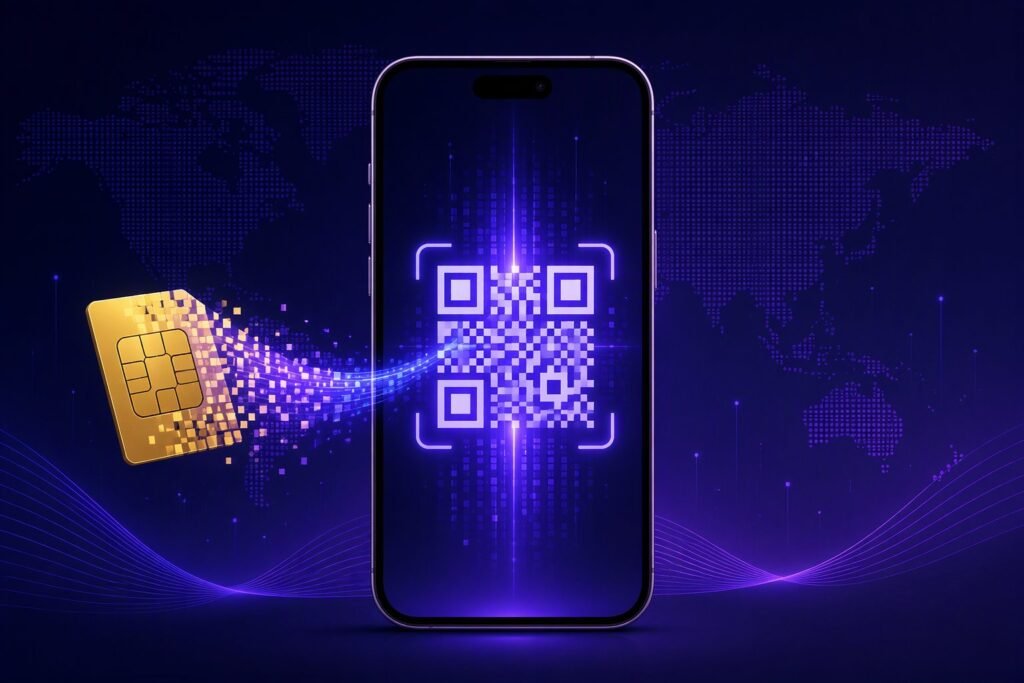
eSIM — tai skaitmeninė SIM kortelė, kuri jau integruota jūsų telefone. Nereikia nieko išimti, dėti ar nešiotis. Visas procesas: gaunate QR kodą el. paštu, nuskenuojate jį telefonu ir planas įsidiegia. Užtruksite trumpiau nei užvirdami arbatos.
Prieš pradedant — 3 dalykai, kuriuos reikia patikrinti
- Ar telefonas palaiko eSIM? iPhone XS ir naujesni, Samsung Galaxy S20 ir naujesni, Google Pixel 3 ir naujesni — beveik visi flagmanai palaiko. Pilną sąrašą rasite mūsų straipsnyje „Kokie telefonai palaiko eSIM”.
- Ar telefonas atrakintas? Jei telefoną pirkote su operatoriaus sutartimi, patikrinkite, ar jis nėra prirakintas prie to operatoriaus (SIM lock). Atrakinti telefonai priima bet kokio tiekėjo eSIM.
- Wi-Fi ryšys. eSIM profilis atsisiunčiamas internetu — prieš kelionę įdiekite namuose, kur yra stabilus Wi-Fi.
iPhone: diegimas per 2 minutes
- Atidarykite Nustatymai → Mobilūs duomenys → Pridėti eSIM (Settings → Cellular → Add eSIM).
- Pasirinkite „Naudoti QR kodą” ir nuskenuokite kodą, kurį gavote el. paštu.
- Patvirtinkite — planas atsisiųs ir pasirodys sąraše.
- Suteikite planui pavadinimą, pvz. „Kelionė”, kad nepainiotumėte su pagrindiniu numeriu.
Svarbu: naują planą palikite išjungtą iki kelionės. Atvykę į šalį įjunkite jį kaip duomenų liniją ir įjunkite duomenų roamingą — internetas pradės veikti iškart.
Android (Samsung, Pixel ir kiti)
- Eikite į Nustatymai → Ryšiai → SIM valdyklė → Pridėti eSIM (kelias gali šiek tiek skirtis pagal gamintoją).
- Nuskenuokite QR kodą ir patvirtinkite.
- Atvykę į šalį pažymėkite eSIM kaip numatytąją duomenų liniją ir įjunkite roamingą.
5 klaidos, kurias daro naujokai
- Diegia paskutinę minutę oro uoste. Oro uosto Wi-Fi būna silpnas — įdiekite namuose.
- Pamiršta įjungti roamingą. eSIM veikia tik su įjungtu duomenų roamingu — tai normalu ir papildomai nekainuoja.
- Išjungia pagrindinę SIM. Nereikia — palikite ją pokalbiams, o eSIM naudokite tik internetui.
- Skenuoja kodą kelis kartus. Vienas QR kodas aktyvuojamas vieną kartą viename telefone.
- Nesitikrina duomenų likučio. ExRoam paskyroje („Mano eSIM”) matote likutį realiu laiku.
Kažkas neveikia?
Peržiūrėkite mūsų diegimo instrukcijas su ekrano nuotraukomis arba parašykite į pokalbį — atsakome per kelias minutes, o jei plano aktyvuoti nepavyks dėl techninių priežasčių, grąžinsime 100% sumos.
What an eSIM is — and why it is simpler than it looks
An eSIM is a digital SIM card already built into your phone. Nothing to remove, insert or carry around. The whole process: you receive a QR code by email, scan it with your phone, and the plan installs itself. It takes less time than making a cup of tea.
Before you start — 3 things to check
- Does your phone support eSIM? iPhone XS and newer, Samsung Galaxy S20 and newer, Google Pixel 3 and newer — almost all flagships do. See the full list in our article „Which phones support eSIM”.
- Is your phone unlocked? If you bought your phone on a carrier contract, make sure it is not locked to that carrier. Unlocked phones accept eSIMs from any provider.
- A Wi-Fi connection. The eSIM profile downloads over the internet — install it at home before your trip, on stable Wi-Fi.
iPhone: installed in 2 minutes
- Open Settings → Cellular → Add eSIM.
- Choose „Use QR Code” and scan the code from your email.
- Confirm — the plan downloads and appears in your list.
- Label it something like „Travel” so you do not confuse it with your main number.
Important: keep the new plan switched off until your trip. On arrival, set it as your data line and turn on data roaming — the internet starts working immediately.
Android (Samsung, Pixel and others)
- Go to Settings → Connections → SIM manager → Add eSIM (the path varies slightly by manufacturer).
- Scan the QR code and confirm.
- On arrival, set the eSIM as your default data line and enable roaming.
5 mistakes first-timers make
- Installing at the airport. Airport Wi-Fi is unreliable — install at home.
- Forgetting to enable roaming. An eSIM only works with data roaming on — that is normal and costs nothing extra.
- Disabling the main SIM. No need — keep it for calls and use the eSIM for data only.
- Scanning the code twice. One QR code activates once, on one phone.
- Not tracking data usage. In your ExRoam account („My eSIMs”) you can see your remaining data in near real time.
Something not working?
Check our setup guide with screenshots or message us in the chat — we reply within minutes, and if the plan cannot be activated for technical reasons, we refund 100%.